Understand every public frontend flow in one place.
This guide maps how supporters move through projects, forms, ticket events, and live streams on AfricaVotes. It is written in the same visual language as the public site, so teams can explain the experience clearly without switching into dashboard or engineering language.
Frontend-ready and screenshot-ready.
Each section below explains what supporters see, what they can do next, and which public states or promos change the journey.
How supporters move from a public project page into votes and boosts.
Project pages are the most visible public experience. Supporters land on a project, move into nominee or category choices, and can either cast normal votes or buy more through the boost flow.
What supporters see first
- A countdown and public project framing at the top.
- Nominee cards or category stages depending on the project format.
- Live promos like Votes Promo or supporter bonus campaigns when enabled.
- Session-aware hints like the email already in use on that device.
What changes after action
- Daily votes respect the identity and session rules already on the device.
- Boost checkout uses the selected vote count and applies active promo math before payment.
- Successful boosts update public vote totals and queue the usual confirmation path.
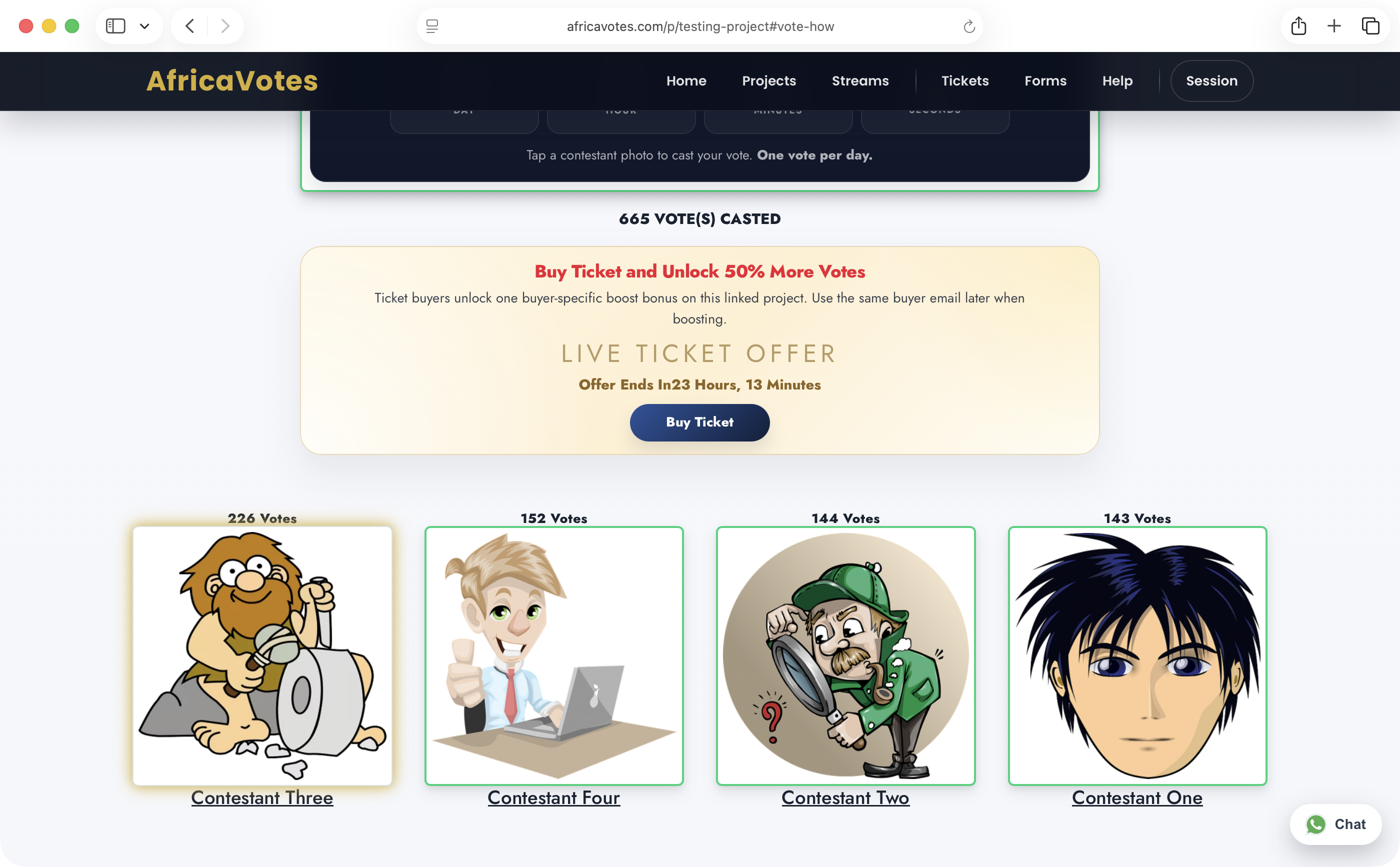
Supporters land on the project countdown, promo area and contestant grid.
This real public capture shows the point where a voter sees the instruction line, any active supporter campaign, and the contestant cards they can tap to continue.
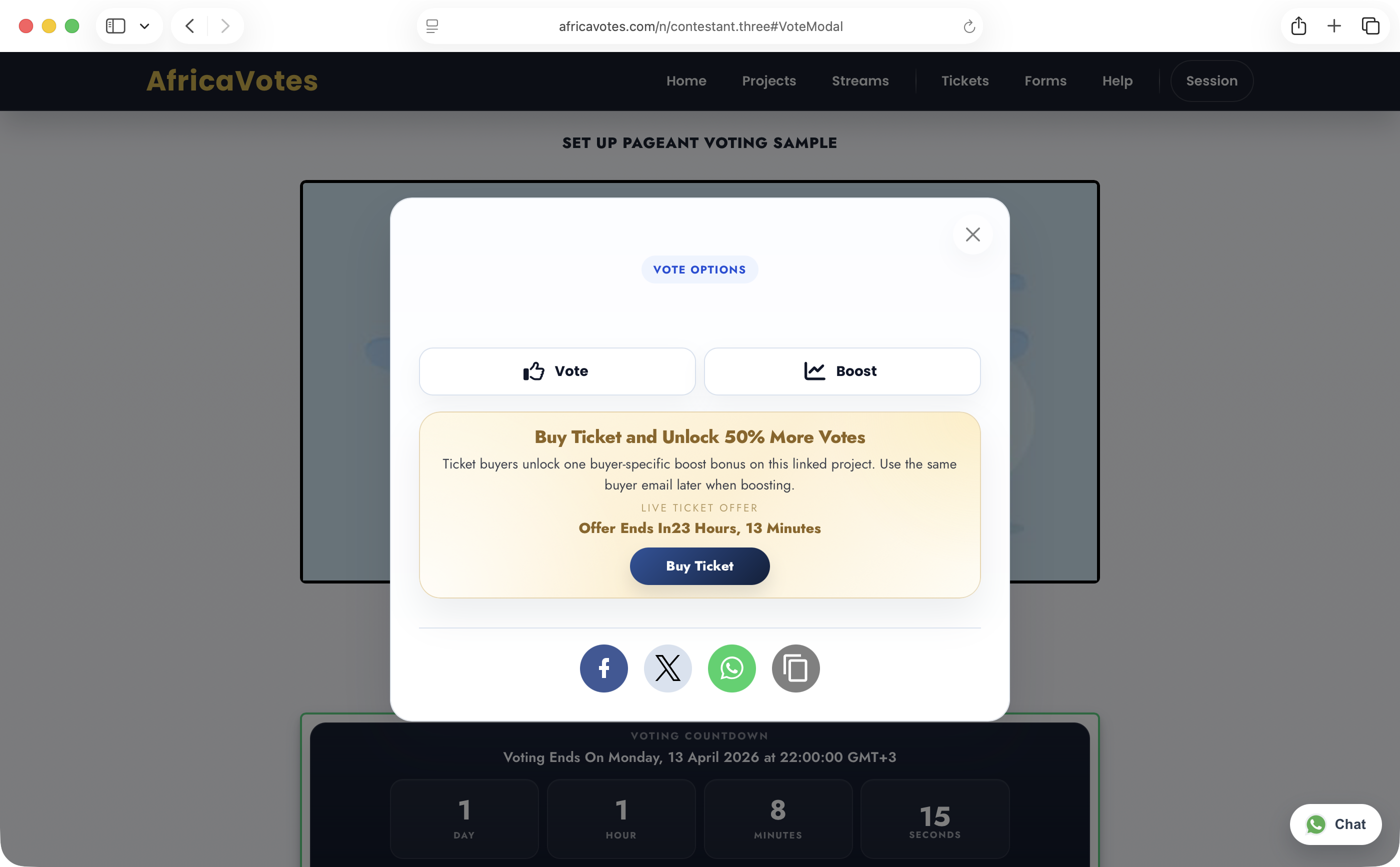
The vote modal is where the user chooses between normal voting and boosting.
The visual guide now shows the real modal state, including the project-linked campaign message that can appear before the user makes a payment choice.
What this teaches clearly
- Where the countdown and daily-vote instruction appear.
- How ticket or supporter promos show up before a vote starts.
- Where users actually tap to move into vote or boost actions.
Recommended walkthrough copy
- Open the public project page and look for the active contestant cards.
- Tap a contestant card to open the vote modal.
- Choose Votefor a standard vote or Boostfor a paid vote purchase.
This keeps the knowledge base anchored to the real screens instead of abstract wireframes.
How to vote, step by step
This is the tight walkthrough for supporters. It follows the real public flow from the project page into the vote modal and then into the paid checkout screen when a user wants to buy votes.
Start on the public project page.
Look for the contestant grid below the countdown. This is where the supporter picks who they want to vote for.
Choose Vote or Boost.
After tapping a contestant, the vote options modal opens. Users can continue with a normal vote or switch into a paid boost flow.
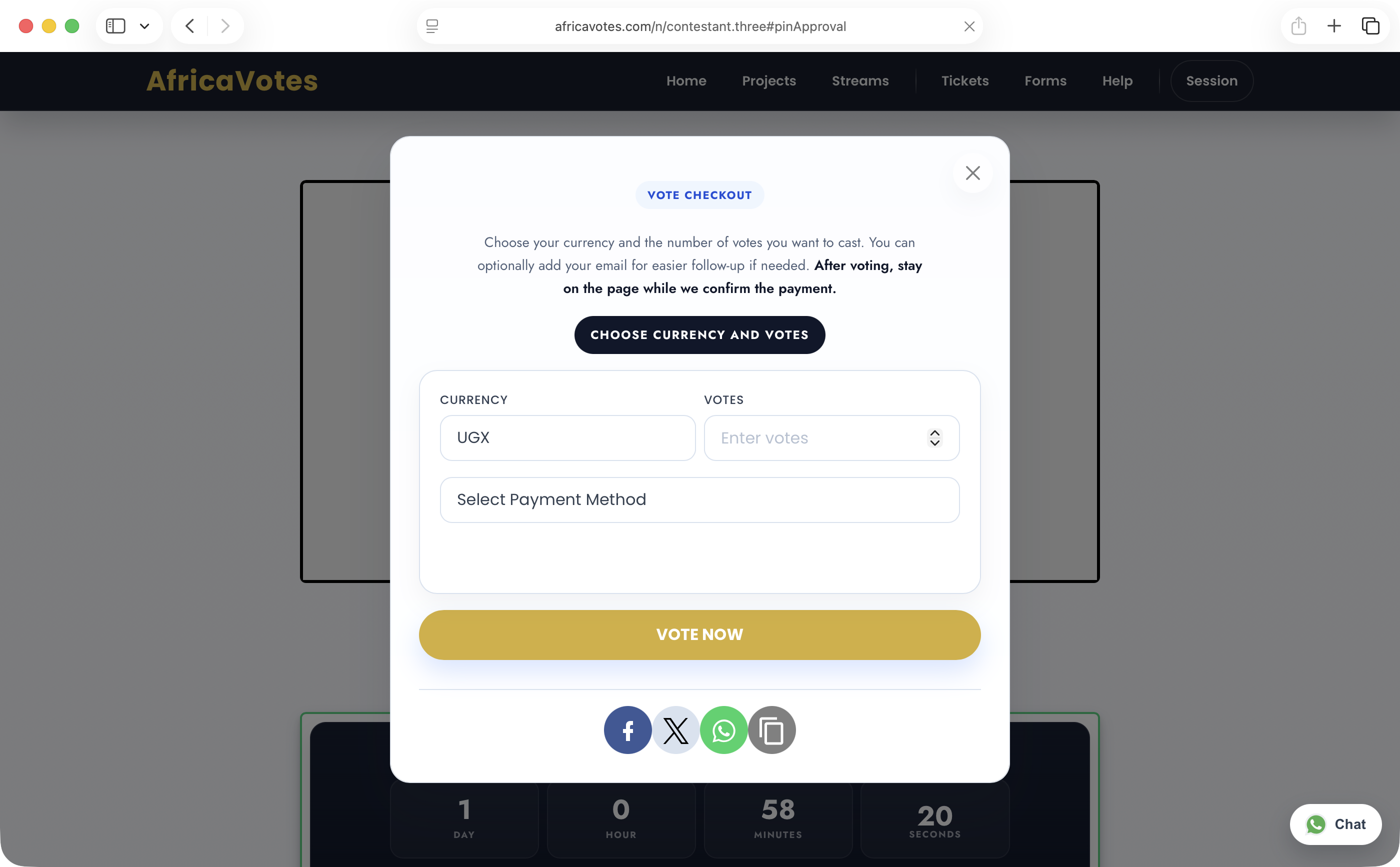
Complete the vote checkout.
On paid vote checkout, the supporter chooses currency, enters the number of votes, selects a payment method, and stays on the page while the payment is confirmed.
Submission flows stay simple, deadline-aware and easy to revisit.
Public forms are split between ongoing and finished states, so users always know whether they can still submit or are only reviewing an archive.
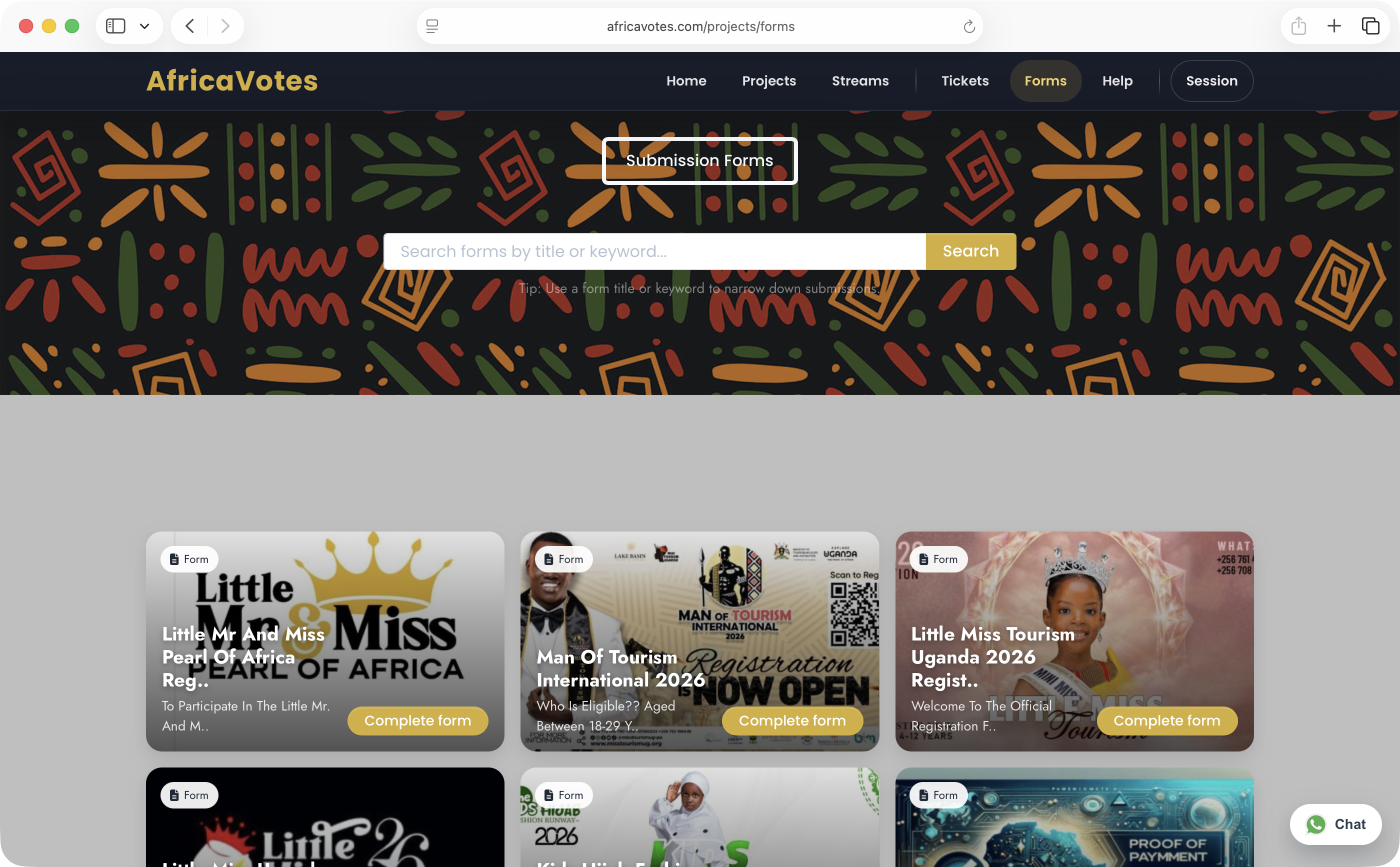
Ongoing forms are easy to scan, search and enter.
This screenshot shows the public forms directory exactly the way a user sees it: top search, form cards, and the direct Complete formentry point.
How to explain it
- Users search or browse forms from one shared public directory.
- Open forms keep a direct action button so entry feels immediate.
- Archive pages keep the same look but change the user expectation from submit to review.
Ongoing Forms
These pages focus on clear entry points, title-first cards, and a direct path into the register form.
- Directory page groups currently open forms.
- Each card drives into a public register page.
- Deadline language stays visible so users know submission timing.
Register Pages
Register pages collect user details, file uploads, and any pricing or payment requirements attached to the form.
- Field structure follows the organizer form setup.
- Country-aware phone handling stays consistent with other public flows.
- Payment-backed forms continue into the public checkout flow.
Finished Forms
Archived forms stay visible without pretending they are still open. The experience shifts from submit-focused to review-focused.
- Users can still open the form page.
- CTA language changes from submit to view.
- The archive list mirrors the same frontend styling as ongoing forms.
How to complete a form
This visual sequence shows the public path from browsing forms to opening a form and filling the registration fields that lead into payment when a form has a fee.
Browse the public forms directory.
Users start from the forms list, search for the right submission, and choose the open form they want to complete.
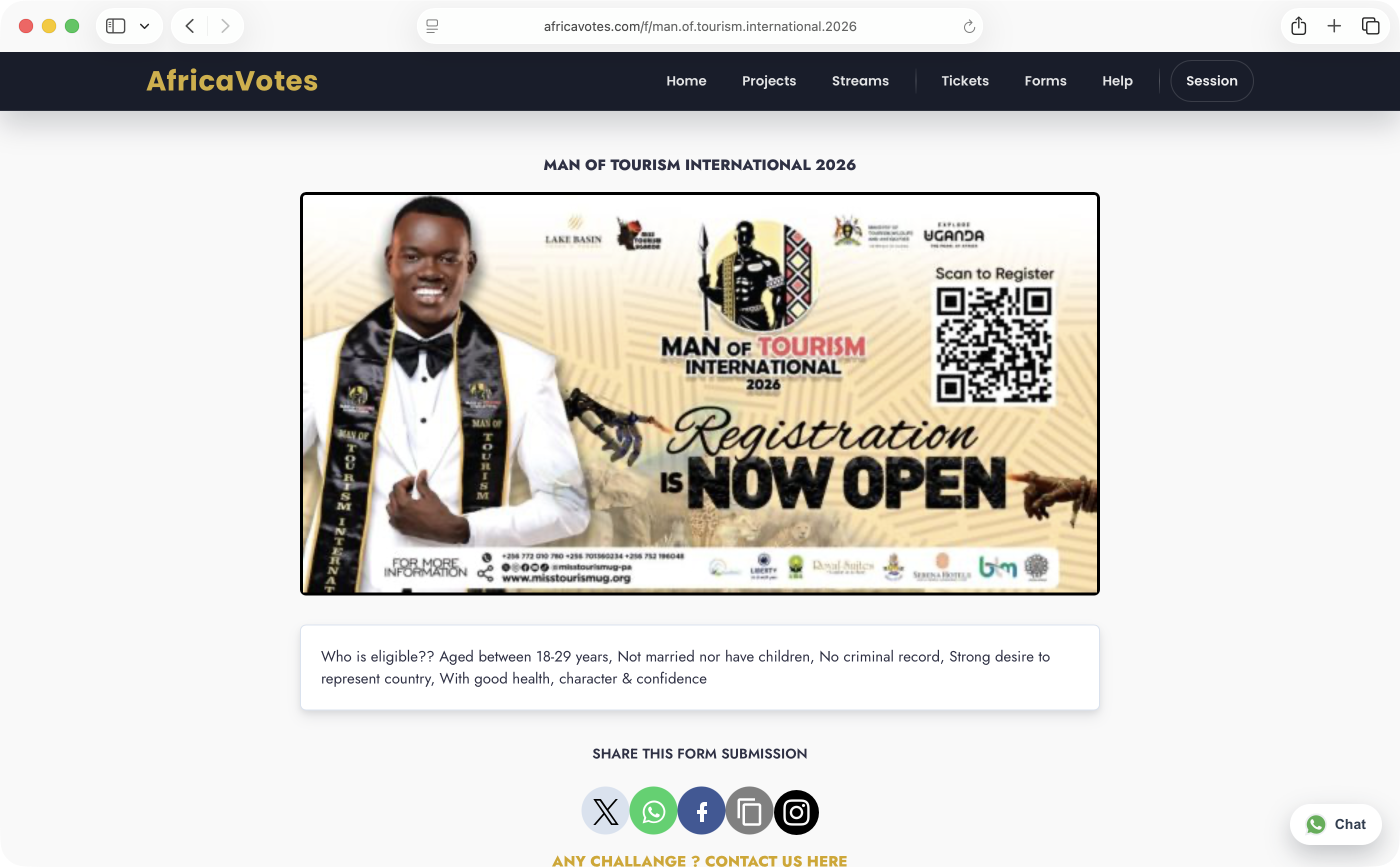
Open the public form page.
The form page carries the submission banner, key notes, and the public context that helps a user decide whether they are eligible to continue.
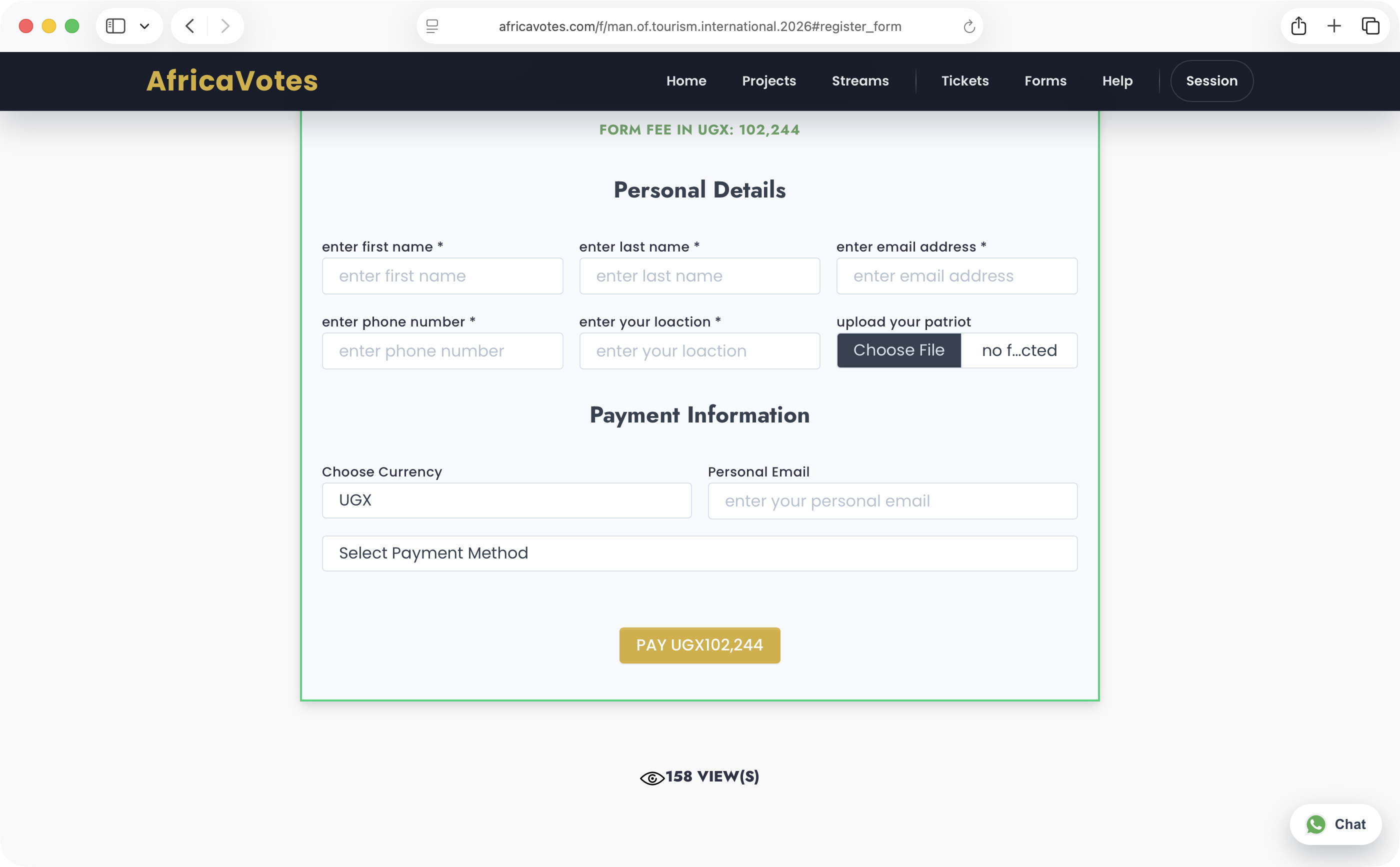
Fill the form and submit.
Users enter their personal details, upload requested files, choose currency and payment method when needed, then continue from the same page.
Ticket events are built around clarity before checkout and confidence after payment.
Users move from the event story and schedule into ticket selection, payment, delivery, and eventually check-in. When bonus campaigns are active, they can also unlock extra boost value for the linked project.
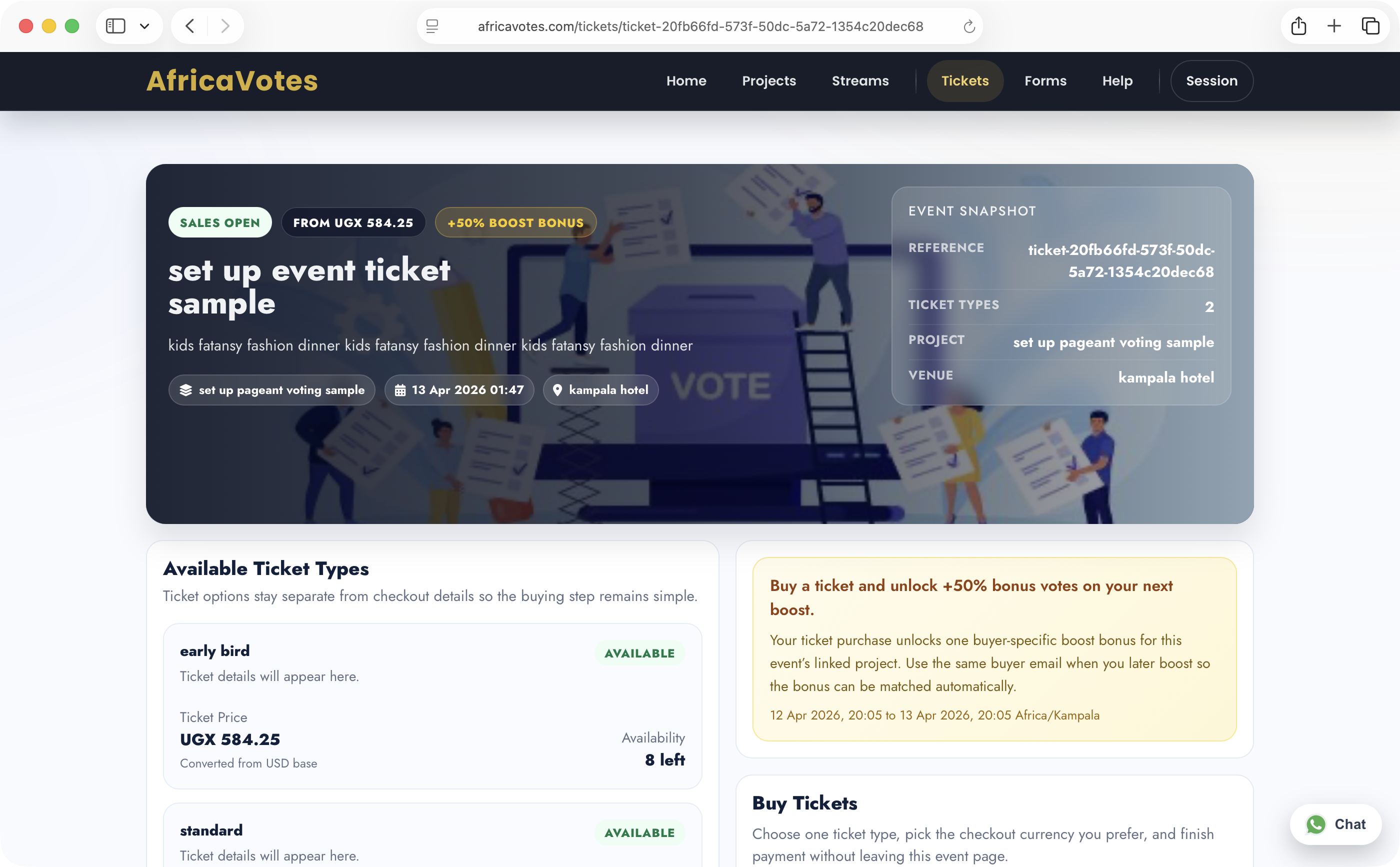
Event pages combine event story, ticket types and active bonus messaging in one screen.
The guide now uses the real public ticket screen, so organizers can point users to the exact places where ticket types, prices and campaign notices appear.
Ticket journey highlights
- Users pick a ticket type, quantity and contact email before payment.
- Successful payment sends the standard event ticket email and print/QR follow-up path.
- Manual `Issue No Revenue` flows now still send the standard success email, so the buyer experience stays consistent.
- When event boost bonus is enabled, buying a valid ticket can unlock a one-time supporter bonus for boosting the linked project.
States worth documenting visually
- On sale and available now.
- Finished or archived event page.
- Bonus campaign live or upcoming.
- Ticket already issued and ready for print or check-in.
How to buy a ticket
This is the public ticket journey from opening the event page to choosing a ticket and approving payment on the device being charged.
Start on the event page.
The buyer sees the event story, date, venue, ticket types, and any active boost-bonus campaign that comes with a valid purchase.
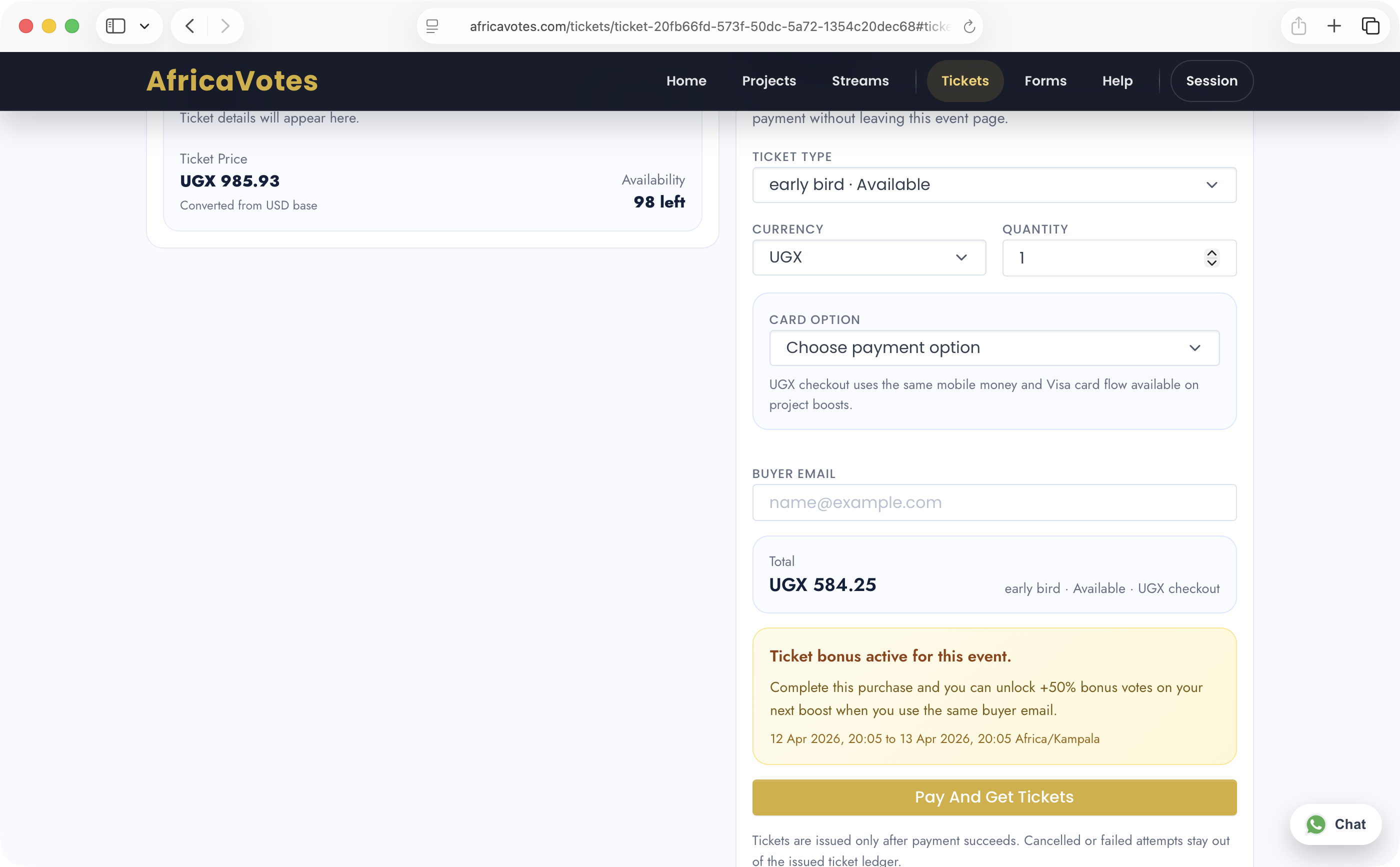
Choose the ticket and checkout details.
The buyer picks the ticket type, currency, quantity, payment option, and buyer email before continuing to payment.
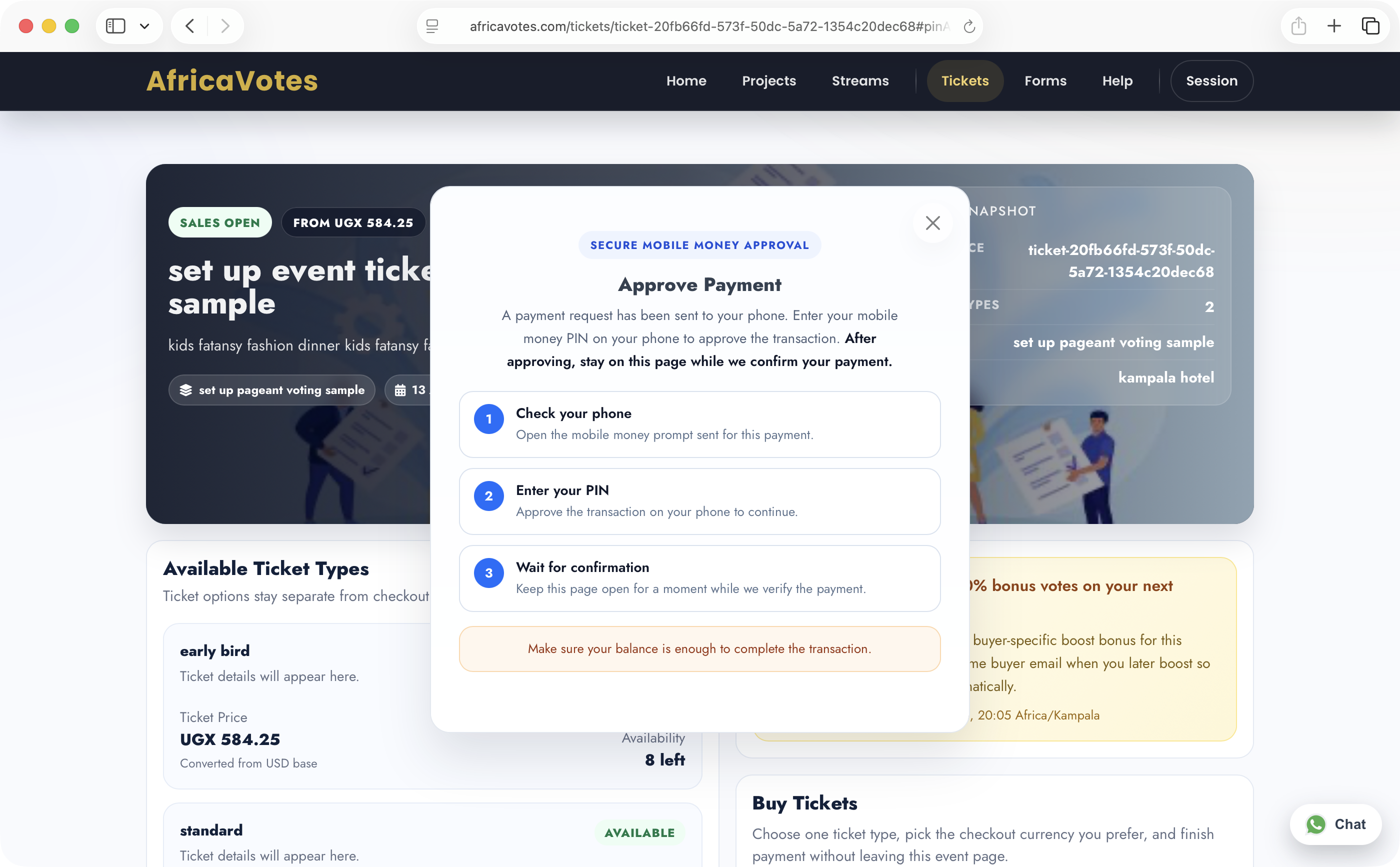
Approve payment and wait for confirmation.
For mobile-money checkout, the buyer approves the request on the phone and keeps the page open while AfricaVotes confirms the ticket purchase.
How ticket check-in works
The gate team unlocks the desk with the event code, scans or looks up the attendee, then confirms admission from the result modal.
Unlock the gate desk.
The check-in team opens the event link and enters the 4-digit gate code the organizer shared for that event.
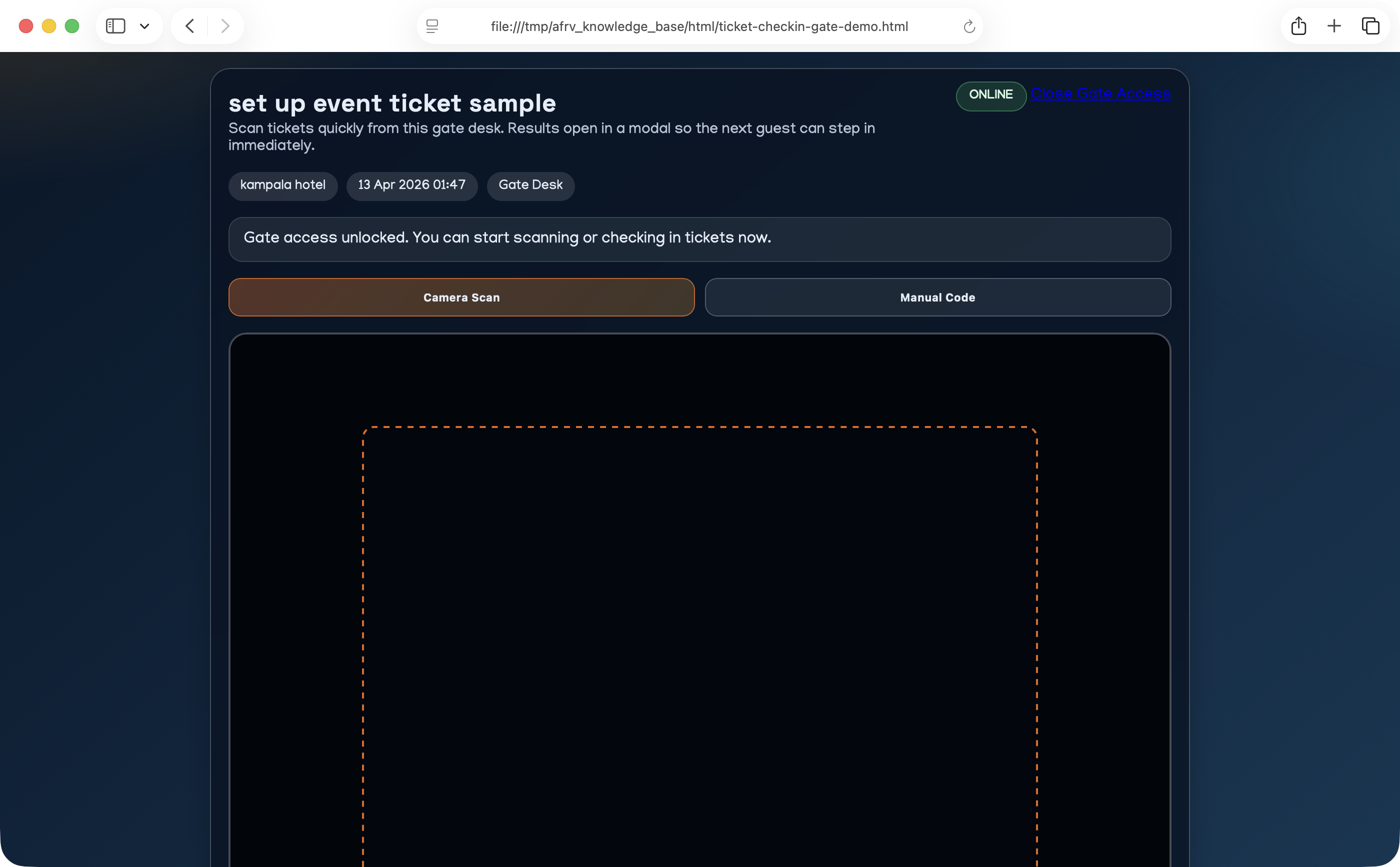
Scan the QR or switch to manual lookup.
Once the desk is open, staff can scan the ticket code with the camera or use the manual code tab when the printed code needs a fallback.
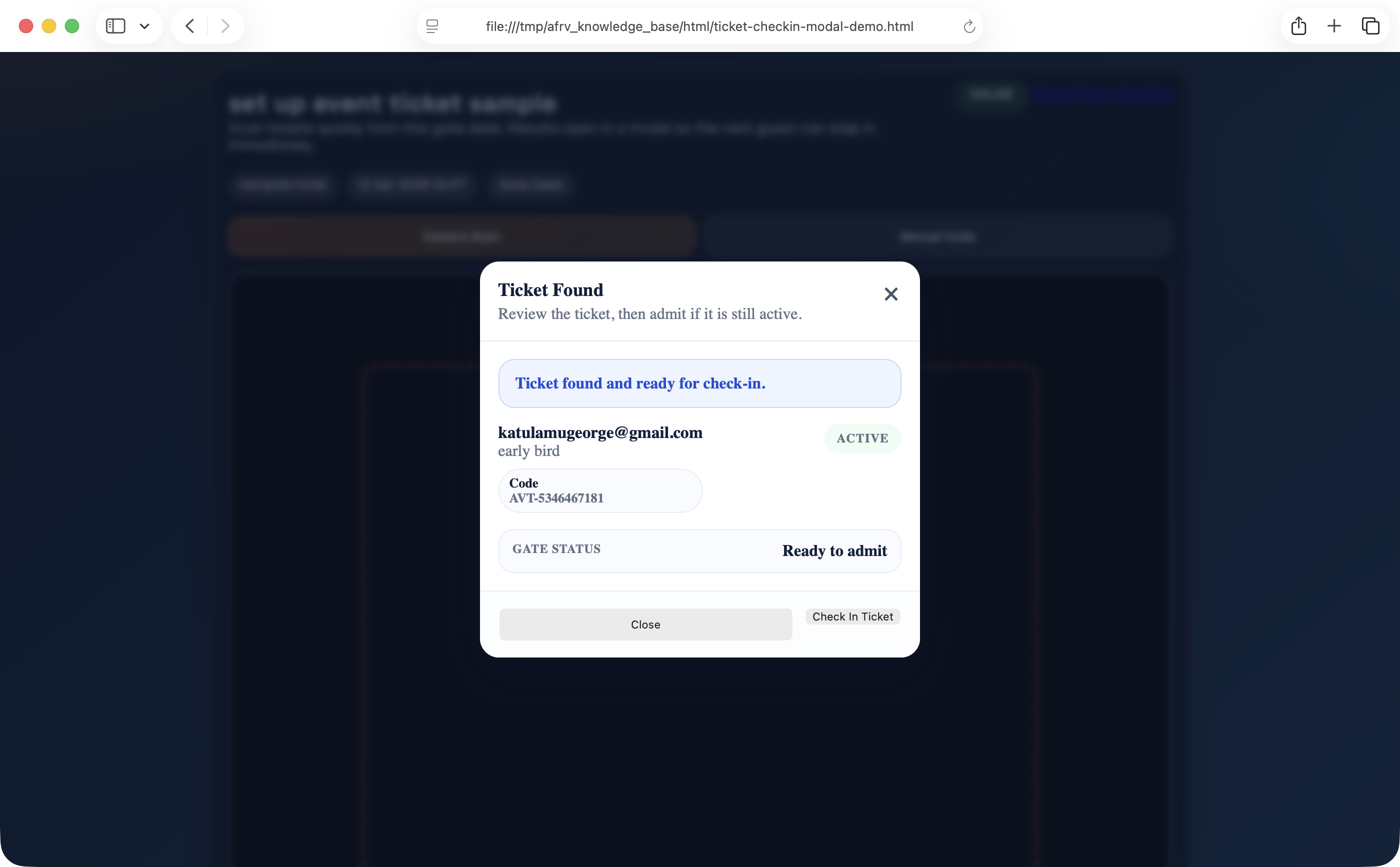
Review the ticket and admit the guest.
The result modal shows the buyer email, ticket code, ticket type, and current status before the team confirms check-in.
Live pages balance access sales, watch flow, replay windows and reclaim support.
Supporters can buy access, watch live, return for replay, or reclaim access through the original email flow. Streams can also run a supporter bonus campaign when linked to a project.
What the public page does well
- Shows whether the stream is upcoming, live, replay-ready or disabled.
- Explains package access like live-only, replay-only, or combined access.
- Keeps reclaim and restore options tied to the buyer email.
- Can market a live access bonus on the linked project when the campaign is active.
Important public outcomes
- Access confirmation email after successful purchase.
- Public live access link or token-based reclaim path.
- Replay access continuing until the configured replay window ends.
The user sees title, timing, access packages, playback state and bonus campaign visibility in one page.
When enabled, the linked project can market live access in the same public promo zone supporters already notice.
How to buy live access
This public flow shows how a viewer lands on the stream page, chooses a stream package, pays, and then uses the same page for watching, restoring, or reclaiming access.
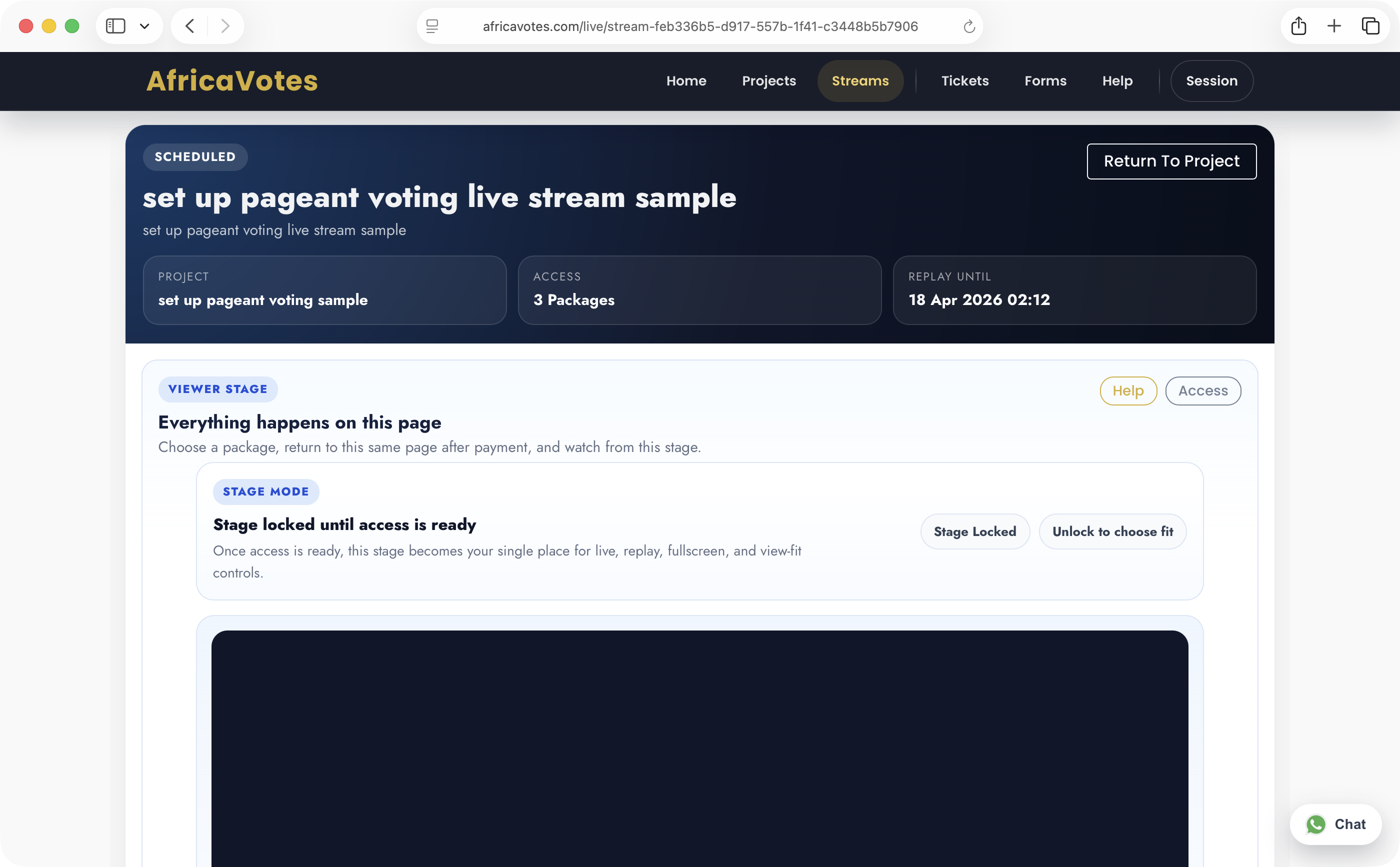
Open the public stream page.
The viewer sees the stream title, project link, replay timing, and the stage where live or replay access will eventually happen.
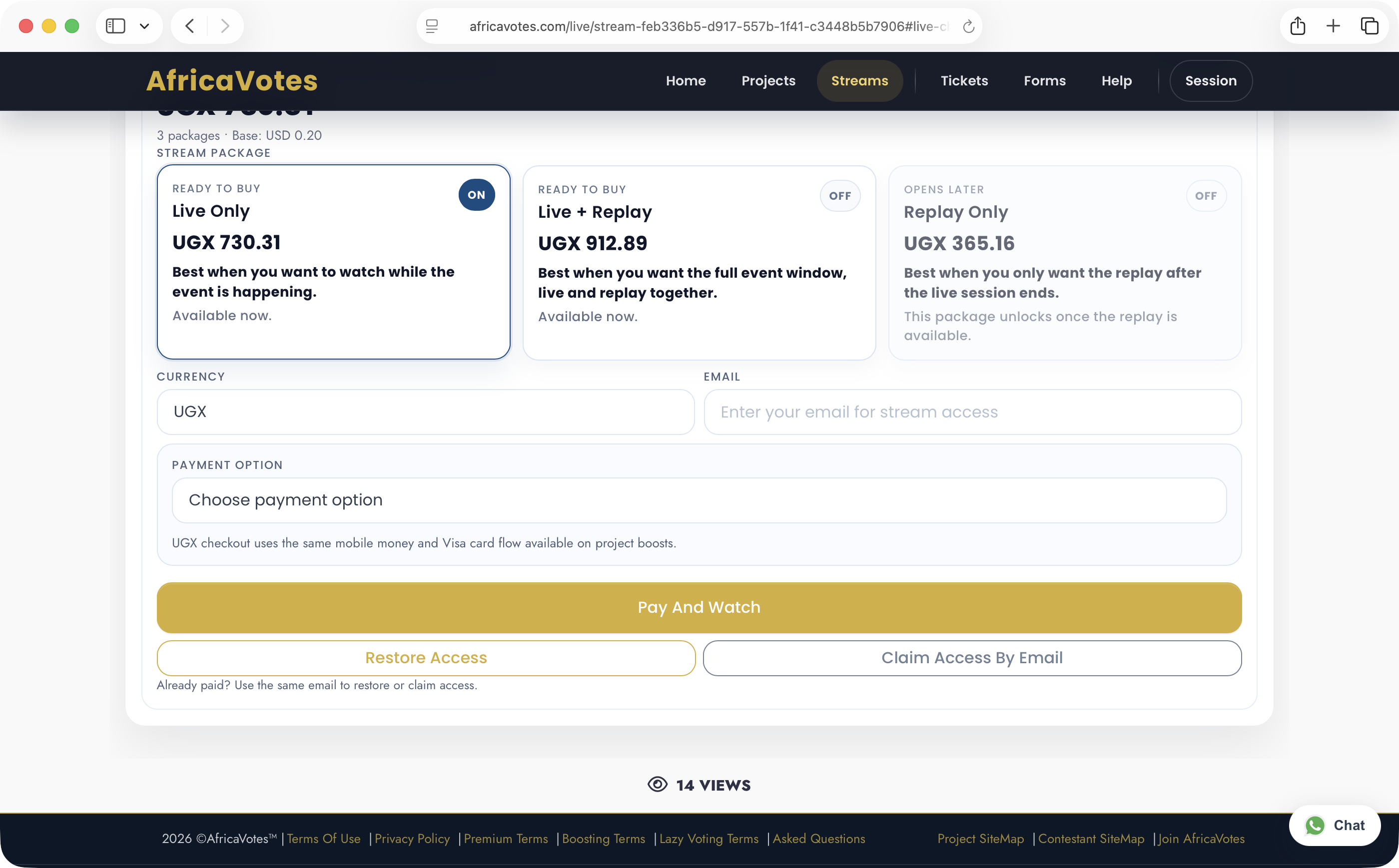
Choose a package and pay.
The viewer selects the live or replay package, enters the access email, chooses the payment method, and uses the main Pay And Watchaction.
Restore or reclaim access later.
If the viewer already paid, the same page offers Restore Accessand Claim Access By Emailso they can get back in without starting over.
Only one promo story should be clear at a time.
AfricaVotes already protects promo logic so campaigns do not collide. Publicly, the important thing is that supporters understand what they are unlocking and when the countdown ends.
Votes Promo
Project-wide campaign that increases awarded votes during the active promo window.
- Visible to everyone on the project.
- Bound by the linked project end date.
- Uses the normal project promo area and countdown behavior.
Ticket Boost Bonus
Buyer-specific entitlement unlocked by buying an eligible event ticket for the linked project.
- One eligible purchase gives one supporter bonus boost.
- Campaign timing follows the linked project boundary.
- Bonus is consumed after the successful boost it powers.
Live Boost Bonus
Buyer-specific entitlement unlocked by buying eligible live access for a linked project.
- Shown publicly in the same familiar promo slot.
- Protected from coexisting with conflicting project promo states.
- Uses the same one-use entitlement model as event bonus.
Support feels better when the public flow explains what comes next.
Receipts, access emails and reclaim links are part of the frontend experience, even when the actual work happens in the queue or on the backend.
Vote / Boost
Boost success emails and public vote count updates help supporters trust the result they just paid for.
Tickets
Standard ticket confirmation, QR access and print flows should always feel immediate and predictable.
Live Access
Access confirmation and reclaim links matter because the supporter may return later from another device.
Help Pages
FAQ, videos, contact and this knowledge base should stay aligned so public guidance never contradicts itself.
Want this page to go deeper with real screenshots next?
This structure is ready for screenshot slots and screen-by-screen notes. We can now layer in actual project, ticket, form and live captures without changing the page design.